How I PXE booted a Talos Kubernetes cluster using a Raspberry Pi
Table of Contents
In my previous post I mentioned three NUCs sitting on a shelf waiting to become a Kubernetes cluster. This is part one: getting the nodes to boot and wiring up the cluster. CozyStack goes on top. That’s the next post.
Why PXE? #
I actually started with USB sticks, one per NUC, each flashed with the same Talos image. It works, but it’s a manual process every time: flash, plug in, boot, remove, repeat. I know I’ll be rebuilding this cluster more than once, and I didn’t want that to involve physical media each time.
PXE boot solves this: the machines boot from the network, the PXE server serves the OS image, and the whole thing is automated. Burn a node, run one command, it’s back.
The hardware #
Three Firebat NUCs, each with:
- AMD Ryzen 7430U (6 cores / 12 threads)
- 32 GB RAM
- 512 GB NVMe SSD
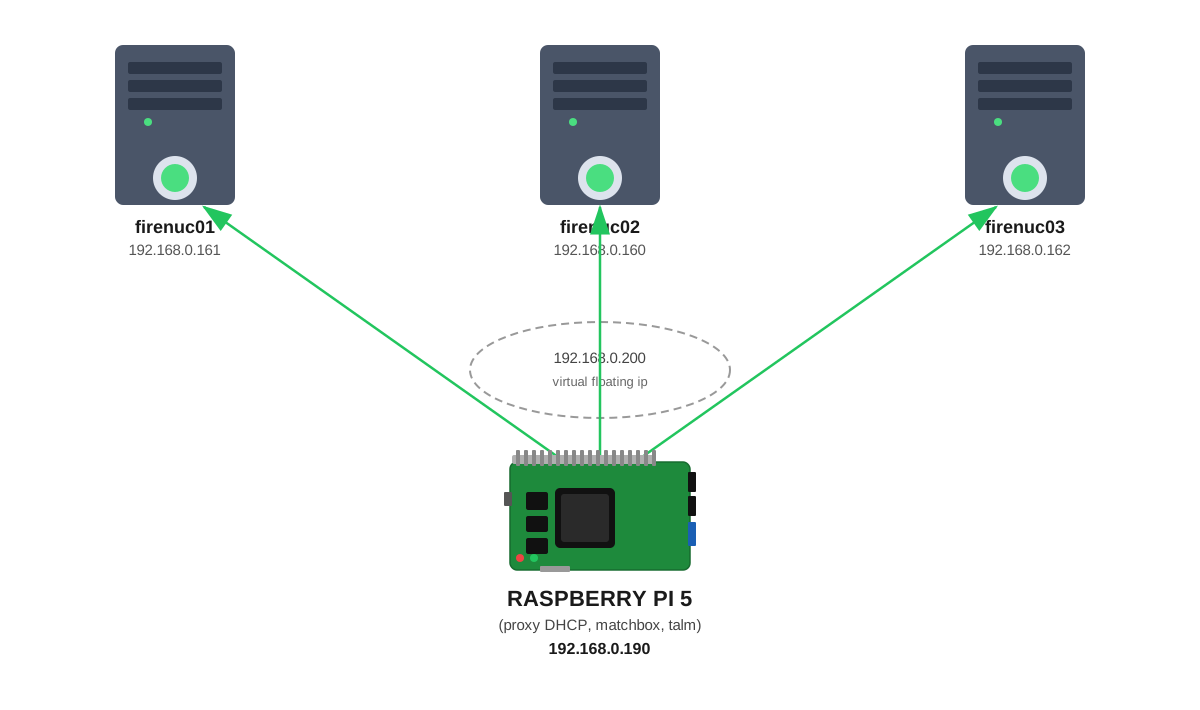
Plus a Raspberry Pi 5 I had sitting around, which became the PXE server and cluster management node.
I gave the cluster its own dedicated /24 subnet to keep cluster traffic separate from the rest of the home network.
Why Talos Linux? #
I went through a few options before settling on this. I’m comfortable with the usual suspects: Ubuntu, AlmaLinux, Rocky, RHEL, but all of them bring a lot of baggage when all you want is a Kubernetes node. You end up managing packages, SSH access, and all the usual Linux surface area on top of actually running a cluster. Fedora CoreOS and Ubuntu Core both move in the right direction: immutable, container-focused, automatic updates. But Talos goes further.
Talos is purpose-built for Kubernetes. It has no shell, no SSH, no package manager. The entire OS is immutable and managed through an API. It’s showing up a lot in the cloud-native space right now, and that was part of the draw for me, something worth learning properly, not just another Ubuntu box with kubeadm on top.
In practice the no-SSH constraint means you can’t log in and make a one-off change you’ll forget about later. Every configuration goes through the API, which means it’s in a file, which means it’s in git. For a cluster you’re deliberately building to be reproducible, that’s exactly what you want.
It also pairs well with PXE. The boot image just gets the node into maintenance mode, then you push config to it over the API and it installs itself to disk.
Prerequisites #
You’ll need a few tools on the management machine (in my case, the Pi):
| Tool | Purpose |
|---|---|
| Docker + Docker Compose | Run matchbox and dnsmasq containers |
qemu-user-binfmt | Run amd64 images on arm64 Pi: sudo apt-get install -y qemu-user-binfmt |
| talm | Talos cluster templating and lifecycle |
| talosctl | Talos node API client |
| kubectl | Standard Kubernetes CLI |
For talm, talosctl, and kubectl: grab the arm64 Linux binary from their respective releases pages, chmod +x, and drop it in /usr/local/bin.
Setting up the PXE server #
The boot sequence #
The home router already handles DHCP. I’m not replacing it. That rules out running a second DHCP server, so dnsmasq runs in proxy DHCP mode: it never assigns IP addresses, it only injects a boot hint alongside the router’s reply.
Here’s the full sequence when a NUC powers on:
- UEFI broadcasts a DHCP request: “I need an IP address. Does anyone have a boot file for me?”
- The router hands out an IP: normal DHCP, nothing special.
- dnsmasq adds a second response: proxy DHCP, it doesn’t touch the IP, but injects: “also, there’s a TFTP server at 192.168.0.190 with a boot file called
ipxe.efi.” - The UEFI firmware fetches
ipxe.efiover TFTP: the iPXE chainloader, a small bootloader that speaks HTTP and knows how to chainload more complex payloads. - iPXE loads, then sends another DHCP request: this time it includes DHCP option 175 (the iPXE user class), the signal that a smarter bootloader is now running.
- dnsmasq spots the option 175 tag and responds differently: “go fetch your boot script from matchbox over HTTP.”
- iPXE fetches the matchbox boot script: matchbox looks up the machine by MAC address and serves the Talos kernel and initramfs for that specific node.
- Talos boots into maintenance mode: the node is up, listening on port 50000, waiting for you to push a machine config to it.
Two containers, one Pi #
services:
  matchbox:
    image: ghcr.io/cozystack/cozystack/matchbox:v1.12.1-v1.1.7
    network_mode: host
    restart: unless-stopped
    command:
      - -address=:8080
      - -log-level=debug

  dnsmasq:
    image: quay.io/poseidon/dnsmasq:v0.5.0-32-g4327d60-amd64
    network_mode: host
    cap_add:
      - NET_ADMIN
    restart: unless-stopped
    command:
      - -d
      - -q
      - -p0
      - --dhcp-range=192.168.0.190,proxy
      - --enable-tftp
      - --tftp-root=/var/lib/tftpboot
      - --dhcp-match=set:ipxe,175
      - --pxe-service=tag:!ipxe,X86-64_EFI,Network Boot,ipxe.efi
      - --pxe-service=tag:!ipxe,x86PC,Network Boot,undionly.kpxe
      - --dhcp-boot=tag:ipxe,http://192.168.0.190:8080/boot.ipxe
      - --log-queries
      - --log-dhcp
I wrapped the docker compose commands in a small Makefile to avoid typing them out every time:
pxe-up:
	docker compose up -d

pxe-down:
	docker compose down

pxe-status:
	docker compose ps

pxe-logs:
	docker compose logs -f
make pxe-up starts the stack, make pxe-down stops it. Keep PXE down when you’re not actively provisioning. If a NUC reboots with network boot first in the BIOS while the stack is running, it will wipe itself back to maintenance mode.
Both containers use network_mode: host because TFTP and raw DHCP can’t be routed through Docker’s NAT. The Pi’s real IP needs to appear in the responses. dnsmasq also needs NET_ADMIN to send raw DHCP packets at all; without it the container just silently does nothing.
Now the dnsmasq flags, tied back to the boot sequence above:
-p0: disables dnsmasq’s built-in DNS resolver. We only need DHCP + TFTP; running DNS on the Pi would conflict with its own system resolver.
--dhcp-range=192.168.0.190,proxy: the proxy keyword is what makes this whole setup work. It tells dnsmasq to watch for DHCP requests on the subnet that contains 192.168.0.190, but never assign IP addresses. That stays with the router; dnsmasq only adds the PXE boot hint on top. (Step 3.)
--enable-tftp + --tftp-root=/var/lib/tftpboot: turns on the built-in TFTP server and points it at the directory where ipxe.efi and undionly.kpxe live. matchbox puts those files there when it starts. (Step 4.)
--dhcp-match=set:ipxe,175: when a DHCP request arrives carrying option 175 (the iPXE user class), tag it as ipxe. This separates a machine already running iPXE from one that hasn’t loaded it yet. (Step 5.)
--pxe-service=tag:!ipxe,X86-64_EFI,Network Boot,ipxe.efi: for machines not yet tagged as ipxe, serve the UEFI chainloader over TFTP. The X86-64_EFI part restricts this to UEFI clients. The line below it (x86PC) does the same for legacy BIOS. (Steps 3–4.)
--dhcp-boot=tag:ipxe,...: for machines already running iPXE, skip TFTP and point them at the matchbox boot script over HTTP. (Step 6.)
--log-queries + --log-dhcp: log everything. You will need this when a NUC sits at a blank screen and you have no idea why.
The gotcha that cost me an afternoon #
Every dnsmasq PXE guide I found used this flag to detect UEFI clients:
--dhcp-match=set:efi64,option:client-arch,9
This looks for clients advertising architecture 9 (x86-64 UEFI). My Firebat NUCs don’t advertise arch 9. They advertise PXEClient:Arch:00007. The two are related but not the same, and dhcp-match with option:client-arch only catches arch 9.
The fix is to use pxe-service instead of dhcp-match. The pxe-service directive handles the UEFI detection differently and works correctly with the NUC firmware:
--pxe-service=tag:!ipxe,X86-64_EFI,Network Boot,ipxe.efi
If your machines don’t PXE boot and dnsmasq logs show the DHCP request being received but nothing happening next, check what architecture value your machines are advertising. --log-dhcp in dnsmasq will show you.
amd64 on arm64 #
The matchbox and dnsmasq images are amd64. The Pi 5 is arm64. Docker can run them anyway via QEMU emulation, but you need to install the binfmt handlers first:
sudo apt-get install -y qemu-user-binfmt
This is a one-time install. The gotcha is that after a Pi reboot, the binfmt handlers sometimes aren’t registered yet when Docker starts. If a container fails with “exec format error” after a reboot:
sudo systemctl restart systemd-binfmt
matchbox version: don’t trust the docs blindly #
When I set this up, the CozyStack PXE docs referenced matchbox v0.30.0. It booted, but it was outdated and I expected the docs to point to the latest version. Always check the actual available tags on ghcr.io/cozystack/cozystack/matchbox and use the version that matches your CozyStack release.
The correct image for CozyStack v1.4.x is CozyStack’s own matchbox fork:
ghcr.io/cozystack/cozystack/matchbox:v1.12.1-v1.1.7
You can use the upstream quay.io/poseidon/matchbox image, but then you’d need to manually stage the Talos kernel and initramfs. CozyStack’s fork bundles them and serves them automatically.
Building the cluster #
At this point all three NUCs are sitting in Talos maintenance mode. They’ve booted the Talos kernel over PXE, the OS is running in RAM, and the Talos API is listening on port 50000. No config applied yet, just a node waiting to be told what to do.
To get from here to a running cluster I used talm, a templating tool for Talos machine configs that handles node discovery, per-node config generation, secrets management, and bootstrapping. It deserves its own post, so I’ll cover it in detail next time. The short version: once the nodes are in maintenance mode, talm discovers their hardware, generates configs, applies them in the right order, and bootstraps etcd.
References #
- talm: Talos cluster lifecycle tool
- Talos Linux: the OS running on all three NUCs
- matchbox: PXE boot server (use CozyStack’s fork, not upstream)
- dnsmasq proxy DHCP: background on how proxy DHCP works
What’s next #
With the PXE side done, talm takes it from there: applying configs, bootstrapping etcd, and getting the cluster to a running state. PXE goes off once the nodes are installed to disk.
Next up: getting CozyStack installed on top of this cluster. Talm will get its own post. I want to spend more time with it before writing about it in depth.